Introduction
In this post, we will explore Docker Swarm Cluster. We have already initiated Swarm mode in the previous post in a single node, and there are 5 containers running for our application Pythonapp.
In this post, we will add more node to the Swarm cluster. If you have not gone through the previous post, please go through it first as both are related.
The Architecture
This is the current architecture, where 5 containers of Pythonapp are running on a single node. As we have initiated Swarm Mode, this node acts as a Swarm Manager as well as a Worker Node.
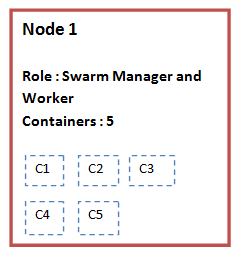
Swarm Manager
In a Docker Swarm cluster, Manager nodes are the nodes who manages the cluster. Some of the activities which can be performed by Swarm Manager are :
- To maintain the cluster state
- To schedule services
- To server Swarm mode
Following are some important points related to Swarm Manager deployment :
- By default, Manager nodes also work as worker nodes, which means they run containers in addition to the cluster management tasks.
- In a production environment, you should keep more than one Swarm Manager.
- As per Docker documentation, “An N manager cluster tolerates the loss of at most (N-1)/2 managers.” Thus, a cluster having five Swarm Manager can sustain a loss of maximum two nodes.
- Docker documentation also warns that having more Swarm Manager does not improve performance, in fact the opposite is true.
- Docker recommends maximum seven Swarm Manager in a Docker cluster.
Worker Nodes
Worker nodes are responsible for running Docker containers. They do not do cluster management tasks.
It is possible to promote a worker node to a manager node.
For more information on Manager and Worker nodes, please refer this link.
Initialize Docker Swarm
To initialize Docker Swarm. we need to run the below command in any one node :
docker swarm init
Once this command is executed, the node becomes the master node in this single node swarm cluster. We have already completed this step in our previous post.
Now, we can join additional nodes in this swarm cluster, as manager node or as worker node.
Join a additional node to swarm
We can join additional nodes in an existing cluster as Manager node or Worker node.
- To join the node as a swarm manager, we need to obtain a manager node token
- To join the node as a worker node, we need to obtain a worker node token
We will now join a new worker node in our single node Swarm cluster.
On Node 1 (Swarm Manager) , run below command :
docker swarm join-token worker
( If you want to join the new node as swarm manager, you have to obtain manager token by running the command docker swarm join-token manager )

As you can see, this command has given us another command which we need to execute on the worker node. The command also contains the joining token.
Now run this command on the new node, which you would like to join as the worker node :
docker swarm join –token <token value>

So with this, the new node has been joined to our Swarm cluster as the worker node.
Validate the Cluster
If you run docker node ls on Node 1 (swarm manager), you will now see that both the nodes are part of this cluster.

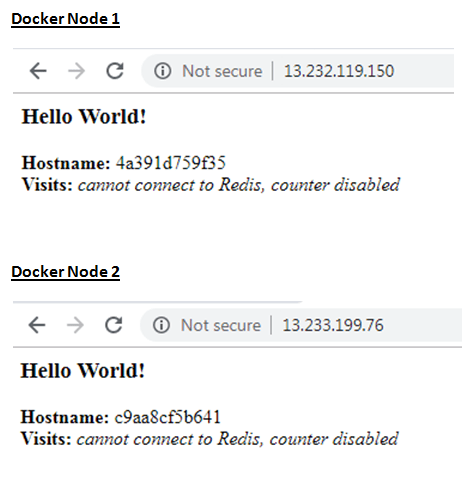
Now, if you open the IP addresses of any of these servers, you will see that the Pythonapp web page is opening.
This means, the containers have been distributed between Node 1 and Node 2.
To leave a Swarm Cluster
If you want to move out a node from Docker Swarm cluster, use this command from the node :
docker swarm leave
After that, run docker node ls from manager node to verify whether the node is still part of the cluster or moved out.
Drain a Node
Draining a node in Swarm cluster is like putting the node in maintenance mode. In the drain mode, the node will not receive any new task from the Swarm Manager.
docker node update –availability drain <Node name>
Once the maintenance work is done, you can change the status back to active :
docker node update –availability active <Node name>
For more details on node draining, please refer this link.
Summary
In this post, we have explored Docker Swarm Cluster. We have joined a new worker node in an existing Swarm cluster, and discussed some other commands.
 Subhro.blog