Introduction
In the previous post, we covered local branches — how to create them, work on them, and merge them back into the main branch.
In this article, we’ll explore how to work with remote Git branches. We’ll configure a remote repository, push local content to a remote branch, and later pull updates from the remote repository.
Create a Remote Repository
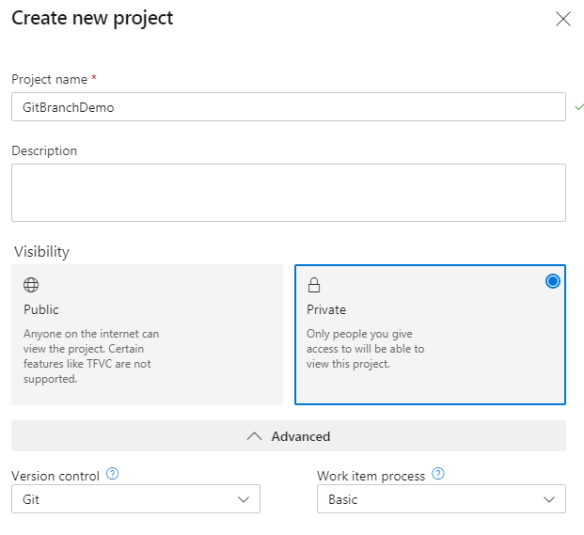
We’ve created a new Azure DevOps project called GitBranchDemo. The project is Private and uses Git as the version control system.
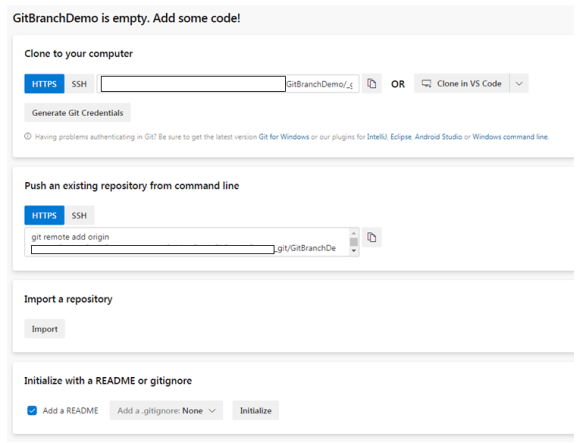
In Azure Repos, you’ll see an initial screen asking how you want to add code to the empty repository. We’ll use the second option: pushing code from our local repo to Azure Repos.
Configure Remote Repository in Git
Use this command to add a remote repository to your local Git config:
git remote add <remote name> <repository URL>We typically name the remote as origin — but you can choose any name. This is a local alias and doesn’t affect the remote server.
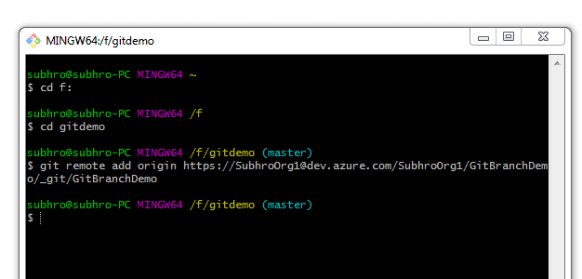
Important: “origin” refers to the remote repository, not a specific branch. There can be multiple branches in the remote repository.
If you ever want to remove a remote, run:
git remote remove originPush Code to Remote Branch
Once the remote is configured, push your local code using:
git push <remote name> <branch name>Example:
git push origin main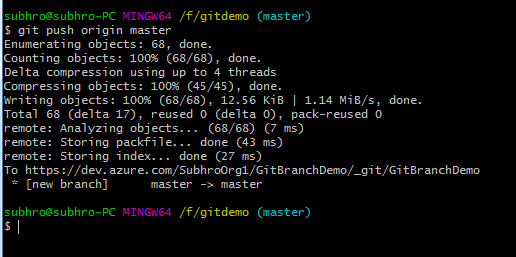
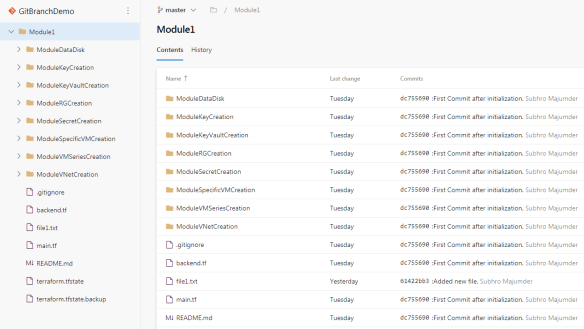
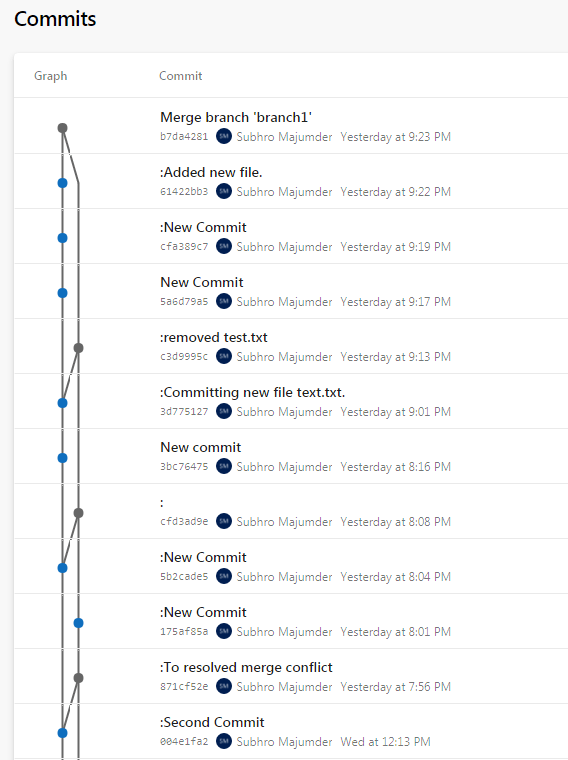
This creates a new main branch in the remote repository and pushes your local commits there.
Push Code to a Remote Feature Branch
Let’s say the main branch is now protected and doesn’t allow direct push. If you try to push, you’ll get an error:
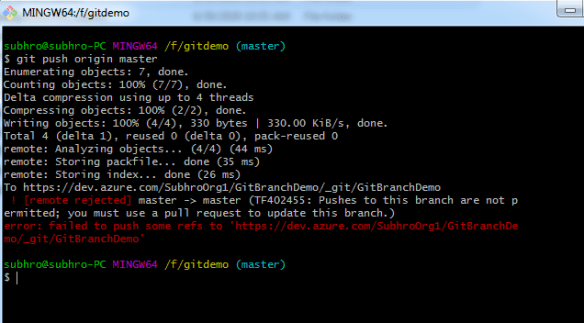
So we’ll push to a separate branch instead — usually a feature or test branch.
You can either push to an existing branch or push to a new one (which gets created in the remote repo).
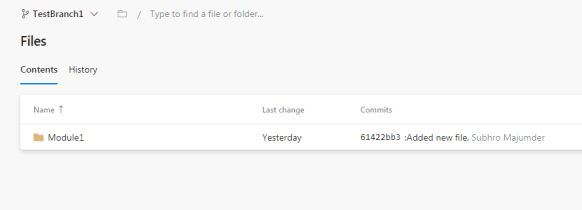
git push origin TestBranch1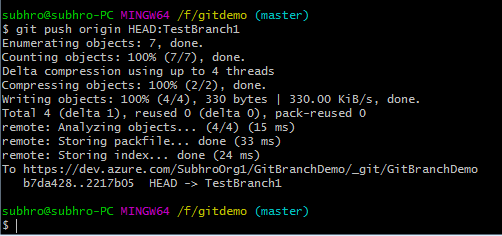
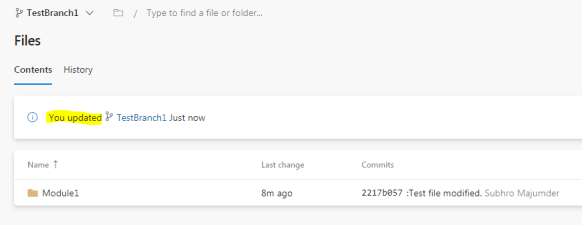
You can also push code to a branch that doesn’t yet exist in the remote repository:
git push origin HEAD:TestBranch2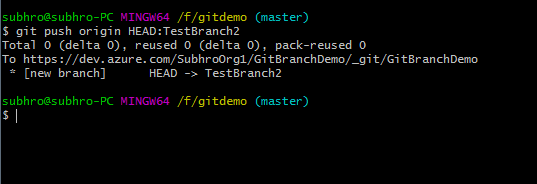
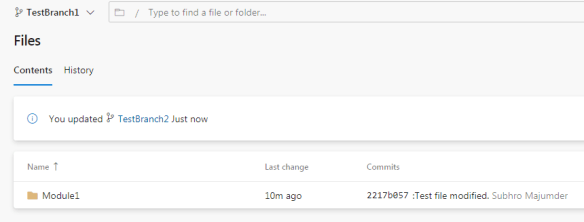
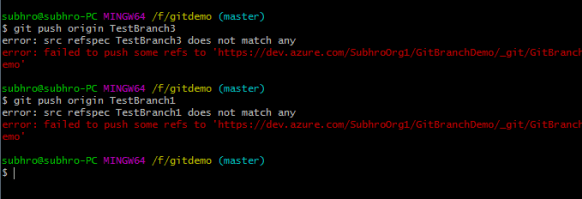
Note: Always use the correct casing for branch names. Git is case-sensitive — if you mismatch, a new branch may be created unintentionally.
Pull Code from Remote Repository
We’ve seen how to push. Now let’s pull code from a remote repository.
Two commonly used commands:
- git clone: Used initially to create a full local copy of a remote repo
- git pull: Used to fetch and merge updates from a remote repo (equivalent to
git fetch + git merge)
In our case, we created an empty folder GitDemo1, initialized Git, and pulled from the remote:
git pull origin main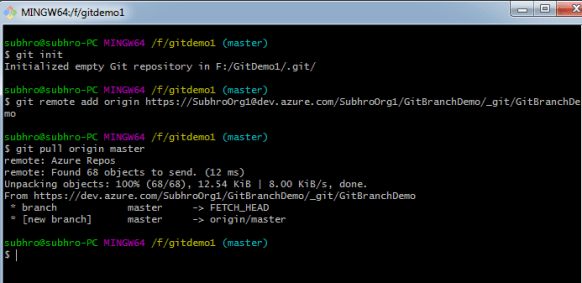
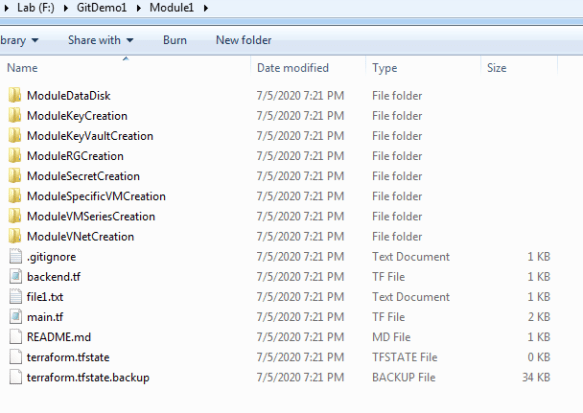
You can use git pull regularly to keep your local repo up to date with changes from teammates.
List All Remotes
To list remote repositories and their URLs:
git remote -v
This shows remotes configured for your current local repository — not globally across your system.
Summary
We covered how to work with remote Git repositories — pushing, pulling, and managing remote branches in Azure Repos.
Command Recap:
-
-
- git remote add origin <url>: Add a remote repository
- git push origin main: Push local branch to remote
- git push origin HEAD:<branch>: Push to a new remote branch
- git clone <url>: Clone a full remote repository
- git pull origin main: Pull updates from remote branch
- git remote -v: Show configured remotes for current repo
-
Tip: Be careful with branch naming and permissions — especially on protected branches like main.
 Subhro.blog