Introduction
In the previous article, we discussed how to install and configure Git on your local system.
This article covers the most common day-to-day Git operations: initializing a Git repository, checking status, adding files, staging changes, and committing them — the essential building blocks for any Git workflow.
Initialize a Git Repository
Once Git is installed, the first step to version control a project folder is to initialize a repository inside it.
Run the command git init from the root directory of your project.
You can initialize Git in an empty folder or an existing folder with files.
Example: You have a project at F:\GitDemo. Open Git Bash, navigate to that directory, and run:
git init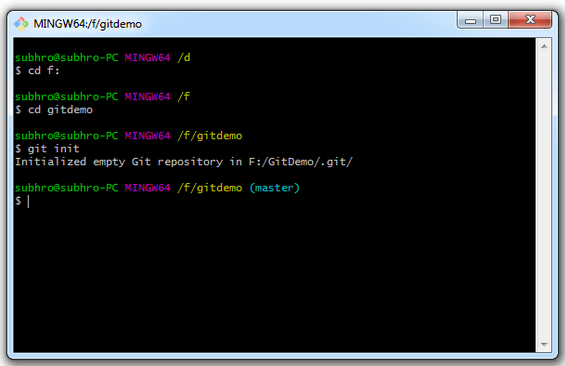
This creates a hidden folder named .git which contains all the metadata required to track your project.
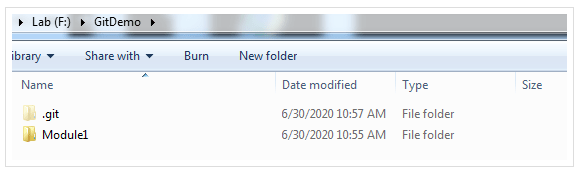
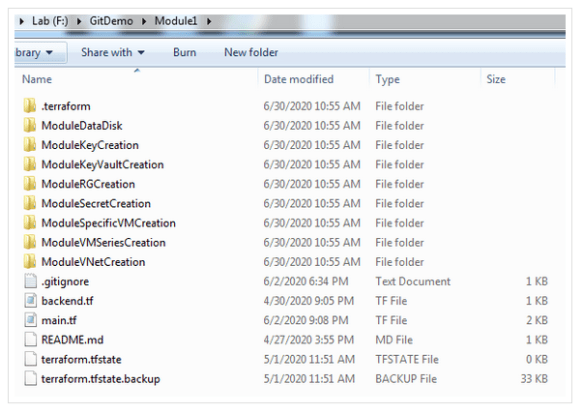
In this example, Module1 is a subfolder under GitDemo. When Git is initialized in GitDemo, it tracks all files and folders inside it — including Module1. You do not need to (and should not) initialize Git separately inside subfolders.
If a subfolder already has its own Git repository, remove it to avoid conflicts.
Overview of a Git Repository
Git classifies files into two main categories:
-
-
- Tracked: Files Git knows about and is tracking
- Untracked: Files Git doesn’t yet track
-
Tracked files go through three states:
-
-
- Unmodified: No changes since last commit
- Modified: Changes made but not yet staged
- Staged: Ready to be committed
-
For a new file, the workflow is:
-
-
- Add the file to Git using
git add— Git starts tracking it - The file moves to the staging area
- Commit it with
git commit
- Add the file to Git using
-
If the file is already tracked, and you modify it, you only need to stage and commit again — no need to add it from scratch.
Check Repository Status
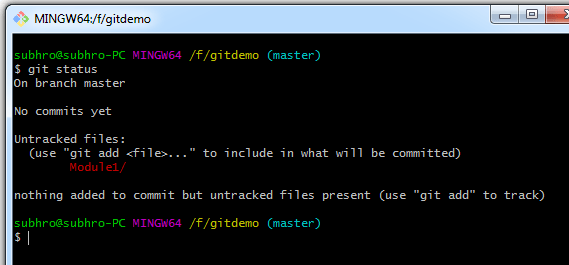
Use git status to see the current state of your working directory and staging area.
Run the command from inside the Git-controlled folder. If you haven’t staged or committed anything yet, Git will list untracked files.
Add Files to Git Tracking
The git add command serves two purposes:
-
-
- Add untracked files to Git tracking
- Stage tracked files (new or modified) for the next commit
-
You can run git add <filename> individually or use:
git add .…to stage all new and modified files at once.
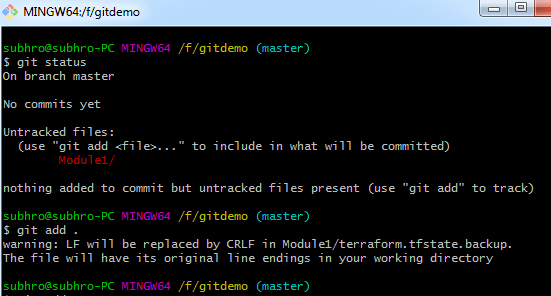
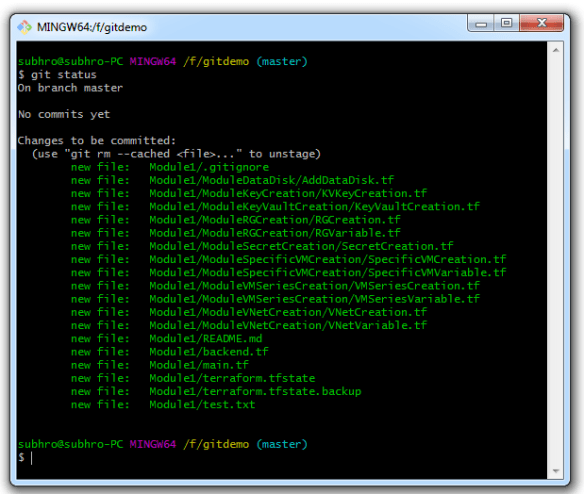
After running git add, check the status again:
git statusNow your files will appear under “Changes to be committed.”
Commit Changes
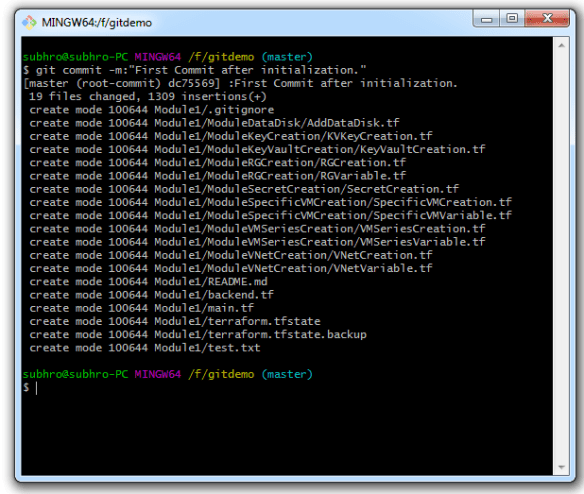
To save changes, run:
git commit -m "Initial commit of Terraform module"Make sure you write meaningful commit messages. This helps when reviewing your project history later.
Now check the status again — your working tree should be clean:
git status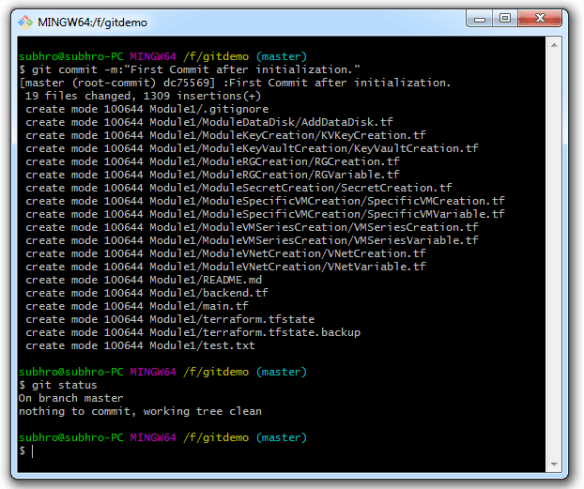
Make Further Changes
When you modify a file, Git recognizes it as “modified.” Repeat the same process:
git add .
git commit -m "Updated module description"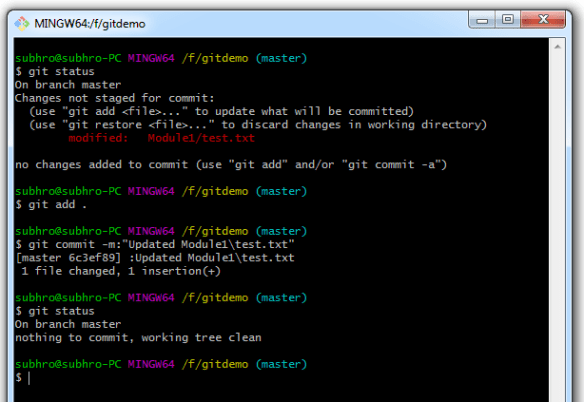
Summary
We’ve covered the most essential Git operations for beginners:
-
-
- git init: Initialize a Git repository
- git status: View the current status
- git add: Add files to staging (track + stage)
- git commit -m “message”: Commit staged changes
-
This workflow — status → add → commit — forms the foundation of all Git usage.
Next up: Learn how to create and manage branches in Git.
 Subhro.blog