Introduction
Security is one of the biggest concerns for any organization, and with the advent of Cloud Computing and Hybrid Infrastructure, it has become more critical than ever. A breach in security and compliance can severely impact business operations, reputation, and may even lead to legal consequences.
Managing credentials, keys, and secrets is an important aspect of cloud security. Azure provides a managed service called Key Vault to store these securely—but how do we manage authentication to access the Key Vault?
Microsoft has extended the centralized identity model from its on-premises products (like Windows Server, SQL Server) to the cloud via Azure Active Directory. Today, many Azure services support Azure AD authentication—and this list is growing.
-
- This article may become outdated over time due to rapid updates in Azure. Please check official Microsoft documentation before implementation.
- Test thoroughly in non-production environments. This content is provided as-is and should be used at your own discretion.
Managed Identities
Managed Identity is a feature that enables Azure resources to authenticate to services that support Azure AD authentication—without storing credentials in your code. It acts as a bridge between a resource and the Azure AD identity system.
Managed Identities are a type of Azure AD service principal and are only meant to work with Azure-hosted resources.
Let’s take an example: An app running in a VM needs to retrieve a secret from Azure Key Vault. Using Managed Identity, the VM can authenticate to Key Vault without using stored credentials. Once the token is obtained from Azure AD, the app can retrieve the secret securely.
✔ One-time setup—fully managed by Azure.
✔ No credentials in code.
✔ No additional cost—it’s a free Azure AD feature.
Types of Managed Identities
System Assigned Identity
-
-
- Enabled directly on an Azure resource (e.g., VM, App Service).
- 1:1 relationship with the resource.
- Automatically removed when the resource is deleted.
- Visible in the resource’s Identity blade (not in Azure AD enterprise applications).
- Cannot be shared across resources.
-
User Assigned Identity
-
-
- Manually created and managed.
- Can be associated with multiple Azure resources.
- Exists independently of any single resource.
- Visible in Azure AD and Azure portal.
- Requires manual deletion when no longer needed.
-
Comparison Table
| Criteria | System Assigned Identity | User Assigned Identity |
|---|---|---|
| Creation | Automatic (per resource) | Manual (user-created) |
| Scope | Single Resource | Multiple Resources |
| Lifecycle | Tied to resource lifecycle | Independent |
| Visibility | Resource Identity blade | Azure AD + Identity blade |
✔ Recommendation: Use System Assigned unless you need to share identity across resources.
How Managed Identity Works
-
-
- Step 1: Azure AD creates a service principal for the resource.
- Step 2: Azure Resource Manager updates the Instance Metadata Service (IMDS) with the principal’s metadata.
- Step 3: The resource calls IMDS to obtain a token.
- Step 4: It uses the token to access other Azure services securely.
-
The token is a JSON Web Token (JWT) and is valid for about 1 hour. The resource (e.g., VM or App Service) authenticates using this token when accessing other Azure services like Key Vault, Storage, etc.
What Happens Under the Hood When a Managed Identity is Created or Deleted?
When you enable a System Assigned Managed Identity on an Azure resource or create a User Assigned Managed Identity, Azure performs the following actions behind the scenes:
✅ On Creation:
-
A Service Principal (App Registration) is automatically created in Azure AD.
This acts as the identity for the resource and is used to request tokens from Azure AD. -
For System Assigned identities:
-
-
The service principal is tightly coupled with the resource and named accordingly.
-
No client secret or certificate is visible or exposed to the user.
-
Azure internally manages the authentication using certificates, and these certificates are automatically rotated by the platform (you don’t manage them manually).
-
-
-
For User Assigned identities:
-
-
A service principal is created independently of any resource.
-
You can link this identity to multiple Azure resources as needed.
-
-
❌ On Deletion:
-
For System Assigned identities:
-
-
When the Azure resource (e.g., a VM) is deleted, the associated Managed Identity (and its service principal in Azure AD) is also automatically removed.
-
-
-
For User Assigned identities:
-
-
Deleting the identity manually from Azure will not impact the associated Azure resources, but the identity will no longer be valid for authentication.
-
-
🔐 Secret or Credential Management:
-
-
-
Managed Identities do not use traditional secrets or passwords.
-
Azure automatically handles the certificate issuance and rotation.
-
There is no need for the developer or admin to worry about credential expiry, rotation, or leakage—that’s the biggest advantage.
-
-
Generic Implementation Approach
-
- Enable System or User Assigned Identity on the Azure resource.
- Verify that the target Azure service supports Azure AD authentication.
- Assign the necessary RBAC or Access Policy to allow the identity to access the resource.
- From the Azure resource, request a token from Azure AD via IMDS :
$response = Invoke-WebRequest -Uri 'http://169.254.169.254/metadata/identity/oauth2/token?api-version=2018-02-01&resource=https://SERVICE-URI' -Method GET -Headers @{Metadata="true"}
$content = $response.Content | ConvertFrom-Json
$token = $content.access_token
Note: Replace SERVICE-URI depending on the service:
– For Key Vault → https://vault.azure.net
– For Storage → https://storage.azure.com
– For Azure Resource Manager → https://management.azure.com
- Use the token in the Authorization header to call the target Azure service securely.
Scenario 1: Azure Windows VM to Access Azure Key Vault
We have a VM name “SubhroJMPServer”. We want it to access Azure Key Vault to retrieve some credential.
But in order to retrieve the credential, the VM needs to authenticate itself to Azure Key Vault. We will leverage Managed Service Identity for this authentication.
Step 1: Register the VM with Azure AD
In the VM Blade, go to “Identity”, and enable “System assigned Identity”.
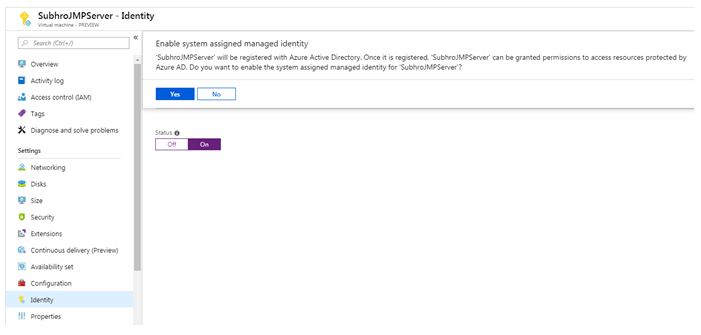
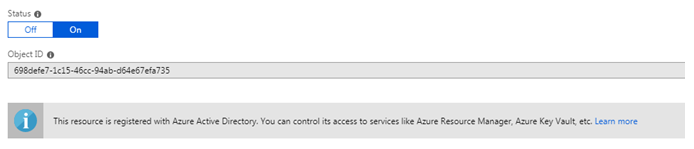
Once done, you can see an “Object ID” assigned to the resource, and a confirmation that it is now registered to Azure AD.
Step 2 : Create a Secret
Go to Key Vault → Secrets → Create a new secret. For testing, enter a value like a password or API key.
Step 3 : Configure Key Vault Permission
If the Key Vault is configured to use Azure AD RBAC, we need to assign an appropriate Azure built-in role (such as Key Vault Secrets User) to the Managed Identity. The access can also be scoped granularly to a specific secret or key, rather than the entire vault.
On the other hand, if the Key Vault is using the Access Policy model, we must explicitly create an access policy that grants the Managed Identity permissions (e.g., Get or List) on secrets, keys, or certificates as required.
Step 4: Retrieve the Secret
Run the following PowerShell commands inside the Azure VM:
$response = Invoke-WebRequest -Uri 'http://169.254.169.254/metadata/identity/oauth2/token?api-version=2018-02-01&resource=https://vault.azure.net' -Method GET -Headers @{Metadata="true"}
$content = $response.Content | ConvertFrom-Json
$KeyVaultToken = $content.access_token
Now use the token to retrieve the secret:
(Invoke-WebRequest -Uri https://testtechnet.vault.azure.net/secrets/TestTechNetSecret?api-version=2016-10-01 -Method GET -Headers @{Authorization="Bearer $KeyVaultToken"}).content
Example screenshot:
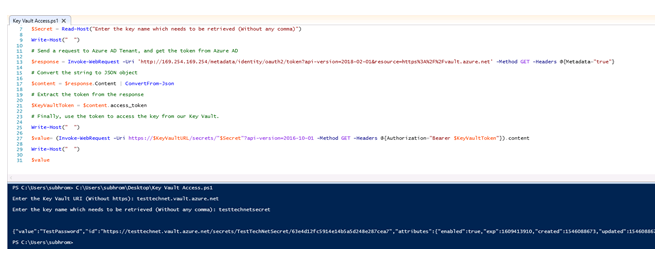
Output:

Scenario 2: Azure VM to connect Azure Blob Storage using Access Key
This method works but is not recommended for modern implementations. It uses the Storage Account Key Operator role to retrieve an access key using ARM API.
We have created a General Purpose v2 Storage Account, with a container named “technet”.
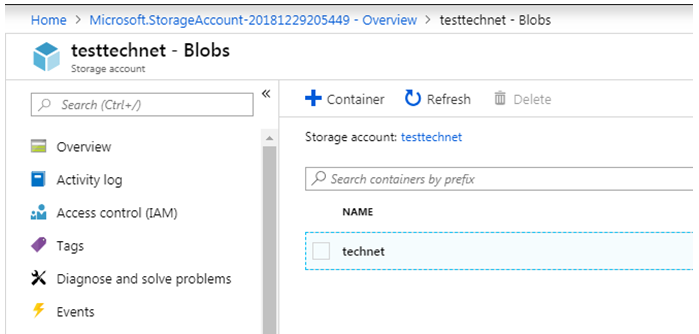
Assign role Storage Account Key Operator Service Role to the VM’s managed identity.
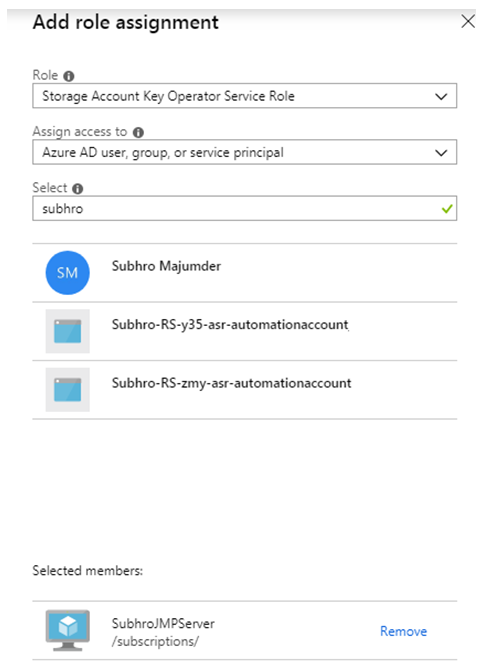
Now use PowerShell to get the access key:
$response = Invoke-WebRequest -Uri 'http://169.254.169.254/metadata/identity/oauth2/token?api-version=2018-02-01&resource=https://management.azure.com/' -Method GET -Headers @{Metadata="true"}
$content = $response.Content | ConvertFrom-Json
$ArmToken = $content.access_token

$keysResponse = Invoke-WebRequest -Uri "https://management.azure.com/subscriptions/<SUBSCRIPTION-ID>/resourceGroups/<RG-NAME>/providers/Microsoft.Storage/storageAccounts/<STORAGE-NAME>/listKeys?api-version=2016-12-01" -Method POST -Headers @{Authorization="Bearer $ArmToken"}
$keysContent = $keysResponse.Content | ConvertFrom-Json
$key = $keysContent.keys[0].value
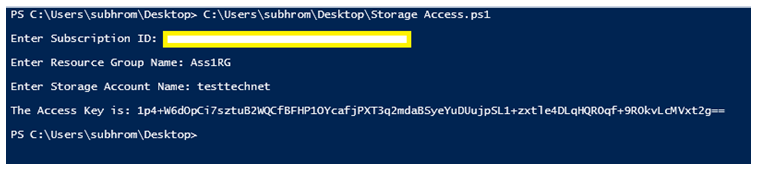
Now upload a blob using the key:
$ctx = New-AzureStorageContext -StorageAccountName <STORAGE-NAME> -StorageAccountKey $key
Set-AzureStorageBlobContent -File test.txt -Container technet -Blob testblob -Context $ctx
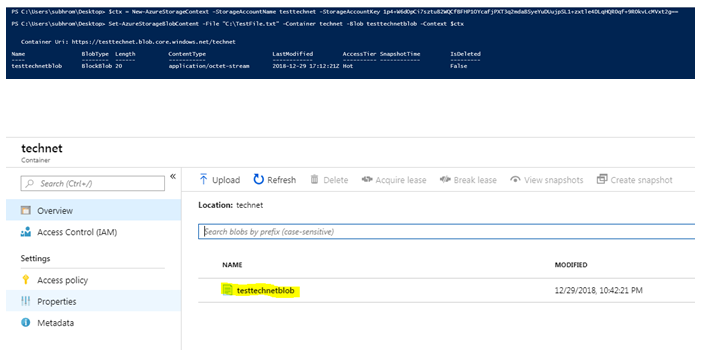
Scenario 3: Azure VM to connect Azure Blob Storage using OAuth (Recommended)
This is the recommended modern approach to access Blob Storage using Managed Identity and Azure AD OAuth tokens—eliminating the need for Access Keys.
Step 1: Assign RBAC
Assign Storage Blob Data Contributor role to the VM’s Managed Identity at the storage account or container level.
Step 2: Get Access Token from IMDS
$response = Invoke-WebRequest -Uri 'http://169.254.169.254/metadata/identity/oauth2/token?api-version=2018-02-01&resource=https://storage.azure.com/' -Method GET -Headers @{Metadata="true"}
$content = $response.Content | ConvertFrom-Json
$token = $content.access_token
Step 3: Use SDK or REST API
You can now use the token to make REST API calls or through Azure SDKs.
GET https://<storage-account>.blob.core.windows.net/<container>/<blob>
Authorization: Bearer <token>
x-ms-version: 2021-08-06
This avoids Access Keys completely and supports fine-grained RBAC permissions.
Summary
Managed Identity is a secure, cost-effective, and fully managed way to enable Azure services to authenticate to each other without storing secrets. You’ve now seen how it works and how to use it with Azure Key Vault and Blob Storage using both access key and OAuth-based approaches.
It is highly recommended to always prefer OAuth-based access via Managed Identity + Azure AD RBAC for long-term sustainability, least-privilege control, and auditability.
 Subhro.blog